
(A Simple System for Any Repeating Notification Email)
Thank me later, but I wanted to share something simple I just learnt to get some inbox sanity back!
If your inbox is constantly filling up with notification emails, alerts, or automated messages, the problem usually isn’t spam – it’s signal vs noise.
Many of these emails are important to keep, but not important to see immediately.
This article shows a simple, repeatable system using Gmail filters, labels, and archiving to keep your inbox clean without deleting anything.
Shopify order notifications are a great example, but this applies to any repeating notification: orders, system alerts, reports, receipts, or confirmations.
The Core Principle
Inbox = messages that need your attention
Labels = messages you need to keep, not react to
If an email:
- arrives frequently
- is automated
- doesn’t require immediate action
…it probably does not belong in your inbox.
What Gmail Gives You (That Most People Don’t Use)
Gmail has three powerful tools that work together:
- Filters – decide which emails to catch
- Labels – act like folders for organising
- Archive – removes emails from the Inbox without deleting them
Used together, they create an “out of inbox, but still accessible” system.
Step 1: Identify a Repeating Email Pattern
Start by identifying emails that:
- Come in often
- look very similar
- usually have the same subject structure or sender
Example (Shopify store owners)
Order notification emails often look like:
[YourStore.com] Order #12345 placed
The exact wording doesn’t matter – what matters is consistency.
Step 2: Create a Label (Your Storage Folder)
In Gmail, labels act like folders.
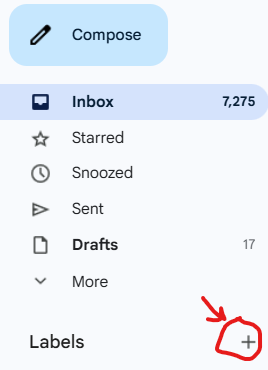
- In the left sidebar, click Create new label
- Name it based on the type, not the sender:
- Orders
- Notifications
- Reports
- System Alerts
This keeps your setup reusable and future-proof.
Step 3: Create a Filter (Tell Gmail What to Catch)
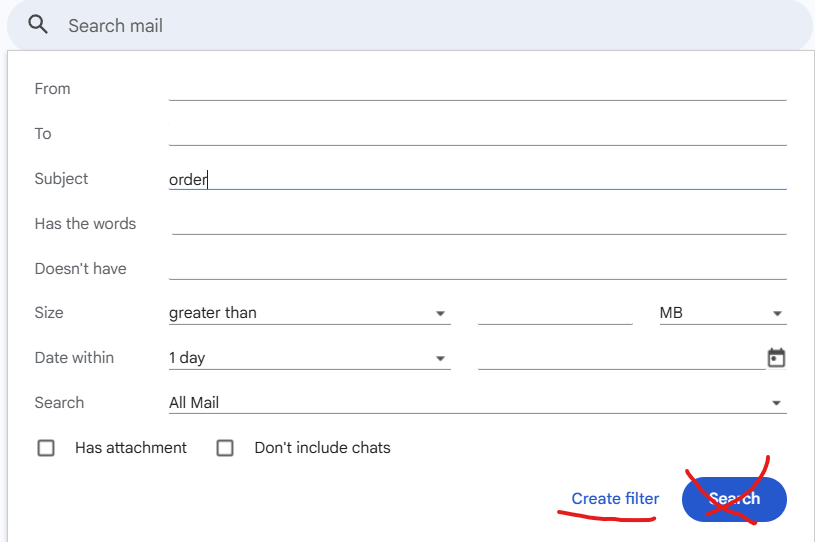
- Click the small arrow on the right side of Gmail’s search bar
- Use one identifying field:
- Subject (best for notifications)
- or From (if sender is consistent)
Example:
Subject contains: Order
- Click Create filter
At this stage, you’re only defining what Gmail should match.

Step 4: Define the Action (This Is the Key Step)
On the next screen, Gmail asks what to do with matching emails.
Check these options:
- Apply the label – select your label
- Skip the Inbox (Archive it)
Optional but useful:
- Also apply filter to matching conversations
Then click Create filter again.
What “Archive” Actually Means in Gmail
Archiving does not delete emails.
Archived emails:
- are removed from the Inbox
- remain under their label
- are still searchable
- stay in All Mail
Think of Archive as:
“This doesn’t need to be in my face.”
Step 5: Clean Up Existing Emails (One-Time Task)
To move old emails out of the inbox:
- Search for the same pattern you used in the filter
- Select all matching conversations
- Apply the label
- Click Archive
That’s it. Inbox cleaned.

Why This Works Especially Well for Shopify Store Owners
Shopify is a perfect example of inbox overload:
- Orders are frequent
- Each email is useful for the records
- Almost none require immediate action
By filtering and labelling:
- Your inbox stays focused on customers and real conversations
- Orders remain accessible for refunds, audits, and accounting
- You reduce cognitive overload while staying organised
When NOT to Use This System
Keep emails in the inbox if they:
- require a response
- are time-sensitive
- represent a task you must complete
This system is for notifications, not conversations.
Final Takeaway
A clean inbox isn’t about deleting more – it’s about routing better.
If something is:
- repetitive
- automated
- informational
Move it out of the inbox, label it clearly, and let Gmail work for you.
Once you do this for one type of email (like orders), you’ll start applying it everywhere – and your inbox will finally stay under control.